
Want to upgrade your car with the latest tech? Apple CarPlay can turn your drive into a smart, connected experience. If your car didn’t come with CarPlay, don’t worry. You can still install Apple CarPlay aftermarket and enjoy safer navigation, easy music streaming, and hands-free calls. Many drivers think this upgrade is only for new cars, but that’s not true. Today, you’ll learn how to add CarPlay to almost any vehicle—even older models.
This guide will walk you through every step, from choosing the right device to installation. You’ll see how to avoid common mistakes, compare products, and make sure everything works smoothly. Whether you want to do it yourself or hire a pro, you’ll find practical advice and real-world tips here.
Ready to bring your car’s dashboard into the modern age? Let’s get started.
Understanding Apple Carplay Aftermarket
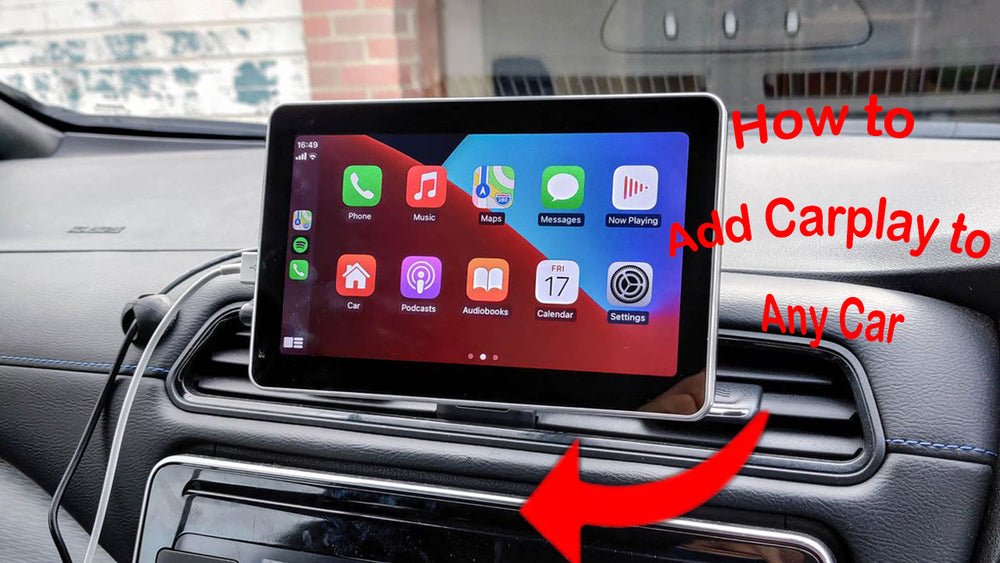
Apple CarPlay is a system that lets you connect your iPhone to your car’s infotainment screen. It gives you access to navigation, music, calls, and messages using Siri voice control or your car’s touchscreen. The “aftermarket” means you add CarPlay to a car that did not come with it from the factory.
There are two main ways to add CarPlay to your car:
- Replace the car stereo (head unit) with a new CarPlay-compatible one.
- Add a CarPlay adapter to your existing infotainment system, if it supports upgrades.
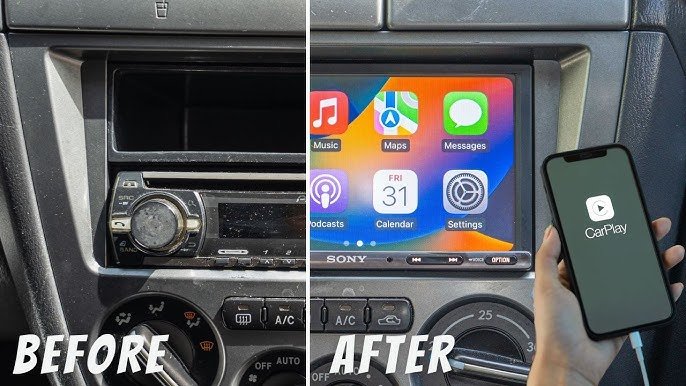
Most people choose to replace the head unit, especially for cars made before 2016. Adapters work for some newer vehicles with compatible hardware.
Why Install Carplay Aftermarket?
Adding Apple CarPlay brings many benefits:
- Safety: Hands-free navigation and calling.
- Convenience: Easy access to your favorite apps.
- Resale value: Modern features attract buyers.
- Entertainment: Stream music, audiobooks, and podcasts.
Older cars get a big tech boost, making daily driving more enjoyable and safer.
Credit: autokitcarplay.com
Choosing The Right Aftermarket Carplay System
The market is full of options, but not every CarPlay unit fits every car. Here’s how to choose the best one for your needs.
Key Factors To Consider
- Screen size: Common sizes are 6.2″, 7″, 9″, and 10″.
- Double DIN vs. single DIN: Double DIN units are larger (about 4″ tall), while single DIN are 2″ tall. Check your car’s dashboard space.
- Wired or wireless CarPlay: Wireless is more convenient but costs more.
- Audio quality: Look for units with high-quality DACs for better sound.
- Compatibility: Make sure the system matches your car’s make, model, and year.
Top Aftermarket Brands
- Pioneer
- Kenwood
- Sony
- JVC
- Alpine
These brands offer reliable hardware, frequent software updates, and wide compatibility.
Example Comparison Of Popular Carplay Head Units
| Model | Screen Size | Wireless CarPlay | Price Range (USD) |
|---|---|---|---|
| Pioneer DMH-W4660NEX | 6.8″ | Yes | $500-$650 |
| Kenwood Excelon DMX907S | 6.95″ | Yes | $600-$800 |
| Sony XAV-AX1000 | 6.2″ | No (Wired) | $250-$350 |
| Alpine iLX-W650 | 7″ | No (Wired) | $300-$400 |
Non-obvious Insight
Some units require extra adapters for steering wheel controls or backup cameras. Check if your preferred model supports these features before you buy.
Tools And Materials Needed
Before starting, gather these items:
- Aftermarket CarPlay head unit
- Vehicle-specific wiring harness
- Dash kit (for proper fit)
- Antenna adapter (if needed)
- Trim removal tools
- Screwdrivers (Philips and flathead)
- Electrical tape or wire connectors
- Panel clips (optional)
- User manuals for both your car and the head unit
Buying a pre-assembled harness can save hours of wiring and prevent mistakes.
Step-by-step Installation Guide
1. Prepare Your Car
Park your car in a safe, well-lit area. Disconnect the negative battery terminal to avoid electrical shorts. Take photos of your current dashboard and wiring—these will help during reassembly.
2. Remove The Old Stereo
Use trim tools to gently remove the dashboard panels. Unscrew and slide out the old head unit. Carefully unplug all connectors, noting their positions.
Pro Tip
Some cars have hidden screws or clips. Check your car’s manual or a YouTube video for your specific model to avoid breaking anything.
3. Connect The Wiring Harness
Match each wire from the new head unit to the car’s harness using color codes. If using a pre-assembled harness, just plug it in. For manual wiring, use crimp connectors or solder for a solid connection. Avoid twisting wires together without insulation.
4. Install The Dash Kit And Head Unit
Fit the dash kit as required for your car’s dash shape. Slide the CarPlay unit into the kit and secure it with screws. Connect all cables: power, speakers, microphone, USB, antenna, and optional camera input.
5. Test Everything
Before putting panels back, reconnect the car battery and turn on the system. Check that:
- The screen powers on
- Sound comes from all speakers
- CarPlay launches when you connect your iPhone
- Steering wheel controls work (if applicable)
- Backup camera displays correctly
If something doesn’t work, double-check all connections.
6. Reassemble The Dashboard
Once you confirm everything works, carefully snap the panels back into place. Avoid forcing parts—they should fit without much pressure.
7. Final Adjustments
Set up your CarPlay preferences. Pair your phone, adjust sound settings, and try navigation, music, and calls. Update the head unit firmware if needed.
Example Installation Timeline
| Step | Estimated Time | Difficulty |
|---|---|---|
| Remove Old Stereo | 20-30 mins | Easy |
| Wiring Harness Connection | 30-60 mins | Medium |
| Install New Unit & Test | 30-45 mins | Medium |
| Reassemble Dashboard | 20-30 mins | Easy |
Total time: About 2–3 hours for most cars.
Professional Installation Vs. Diy
You may wonder if you should install CarPlay yourself or hire a pro. Let’s compare both options.
| Method | Cost | Time Needed | Skill Level | Warranty |
|---|---|---|---|---|
| DIY | $0 (if you have tools) | 2–4 hours | Moderate | No |
| Professional | $100–$250 | 1–2 hours | None required | Yes (often 1 year) |
If you’re comfortable with tools and wiring, DIY can save money. For complex cars or if you want a warranty, professional installation is a smart choice.
Credit: unavi-usa.com
Common Mistakes To Avoid
- Not disconnecting the battery: Always disconnect to avoid short circuits.
- Skipping the wiring harness: Cutting factory wires can damage your car and lower its value.
- Choosing the wrong dash kit: This can lead to poor fit and rattling.
- Forgetting to test before reassembly: Fixing mistakes is much easier before panels are back in place.
- Ignoring firmware updates: Updates fix bugs and add features.
Practical Tips For A Smooth Installation
- Label wires as you disconnect them.
- Take clear photos at every step.
- Use YouTube for car-specific tutorials.
- Buy a backup camera if your new unit supports it—it’s a cheap safety upgrade.
- Keep the box and receipts for warranty service.
Credit: www.youtube.com
Cost Breakdown
Installing Apple CarPlay aftermarket costs between $250 and $800 for parts, depending on features. Professional installation adds $100–$250. Adapters for steering wheel controls or extra cameras may cost $20–$100.
Hidden costs: Some luxury cars require extra modules ($100–$200) to keep features like climate control or factory cameras.
Real-world Example
A 2012 Toyota Camry owner upgraded to a Pioneer DMH-W4660NEX for $600. The dash kit and wiring harness cost $50. DIY installation took 3 hours. Adding a wireless CarPlay adapter later cost $120. The owner noted the biggest challenge was fitting all the wires behind the dash—a problem solved by zip-tying cables and checking for tight spots.
Aftermarket Carplay Adapters
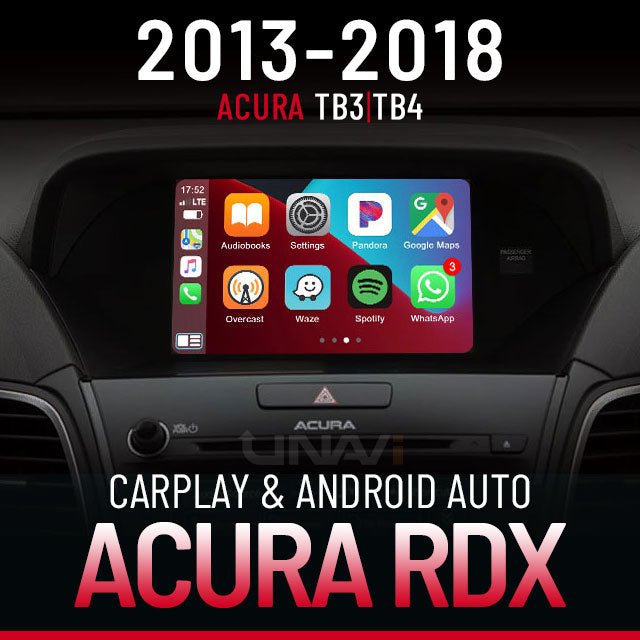
If your car already has a touchscreen (but no CarPlay), a CarPlay adapter may work. Brands like Carlinkit or Ottocast offer USB dongles that add CarPlay for $60–$150. These work best with newer cars (2016+) with Android Auto or MirrorLink.
Warning: Not all adapters are compatible with every car. Check the product compatibility list before buying.
Updating Firmware And Apps
After installation, check for software updates. Manufacturers often release updates to fix bugs or add features. Most updates can be done with a USB drive or over Wi-Fi. Updating your iPhone’s iOS also helps CarPlay work smoothly.
Legal And Safety Notes
- Only use CarPlay when it’s safe to do so.
- Some states ban video playback on the front screen while driving.
- Make sure all wiring is secure—loose wires can cause electrical problems or even fires.
For more details about CarPlay technology and supported devices, you can visit the official Apple CarPlay page.
Frequently Asked Questions
What Cars Can Use Aftermarket Apple Carplay?
Most cars with a standard single or double DIN stereo slot can upgrade to CarPlay. Even many older cars (from the 1990s onward) are compatible if you use the right dash kit and wiring harness.
Do I Need An Iphone For Apple Carplay To Work?
Yes, you need an iPhone (iPhone 5 or newer) running iOS 7. 1 or later. CarPlay does not work with Android phones.
Is Wireless Carplay Better Than Wired?
Wireless CarPlay is more convenient, but it may have slightly higher battery drain and can sometimes have signal issues. Wired CarPlay charges your phone and gives a more stable connection.
Will I Lose My Steering Wheel Controls?
With the correct adapter, most cars keep their steering wheel controls. Make sure to buy a compatible module when ordering your CarPlay head unit.
Can I Install Carplay Myself If I Have No Experience?
Many beginners install CarPlay successfully. Read your car’s manual, follow tutorials, and take your time. If you feel unsure, professional installation is a safe option.
Upgrading your car with Apple CarPlay aftermarket is one of the smartest moves for tech-loving drivers. You’ll enjoy safer, easier, and more fun drives, even if your car is over a decade old. With the right tools, a little patience, and this guide, you can bring your dashboard into the future.